
Quick Win #3 – Adding Alt Text for Images (I for Images)
Alt Text Essentials: Turning Images into Inclusive Assets

Welcome back to the third part of my Quick Wins for Accessibility series. Today, we’re diving into the "I" in our SLIDE method - Alt Text for Images. This is one of those super-effective steps that add incredible value - it’s what makes your content work for everyone.
Why Alt Text Matters:
Alt text, or “alternative text,” is a short description you add to images, allowing screen readers to communicate the content to visually impaired users. Adding alt text ensures that everyone, no matter how they're accessing your content, gets the full picture - literally ; ). And let’s face it, if you've got important data in a chart, everyone should get a shot at understanding that information, right? Adding alt text to images isn’t just about accessibility compliance; it’s about making your content resonate with everyone.
Engaging Audiences with Images
But let’s bust a myth right here: You don't need to skip adding images just because they aren’t "essential." Images can add richness to your content—they help set the tone, improve navigation, make your content memorable, and engage diverse learners. Even decorative images, like the perfect quirky illustration, can make a difference. The key: Use alt text when images add valuable content and mark them as decorative when they don’t.
A Picture is “Worth 1000 Words”: Cliche but true, images help people follow along and remember key points. They add color and texture to your content—making it more engaging and less like a wall of text. Adding thoughtfully selected images is a great way to speak to different learning styles.
Use Icons or Diverse Stock Photos: Icons are perfect for conveying information at a glance, while images of diverse people help your audience feel seen and included. Just make sure each image has a clear purpose, and when choosing images of diverse people, counter stereotypes rather than reinforcing them.
How-To Guide: Adding Alt Text in Word and PowerPoint
Microsoft Word
Right-Click the Image: Select the image and right-click to choose “Edit Alt Text.”
Add a Brief Description: Describe the image by focusing on what you intended to convey when selecting it.
Mark as Decorative: If an image adds no essential information, open the alt-text side bar and mark it as decorative by selecting the decorative text box
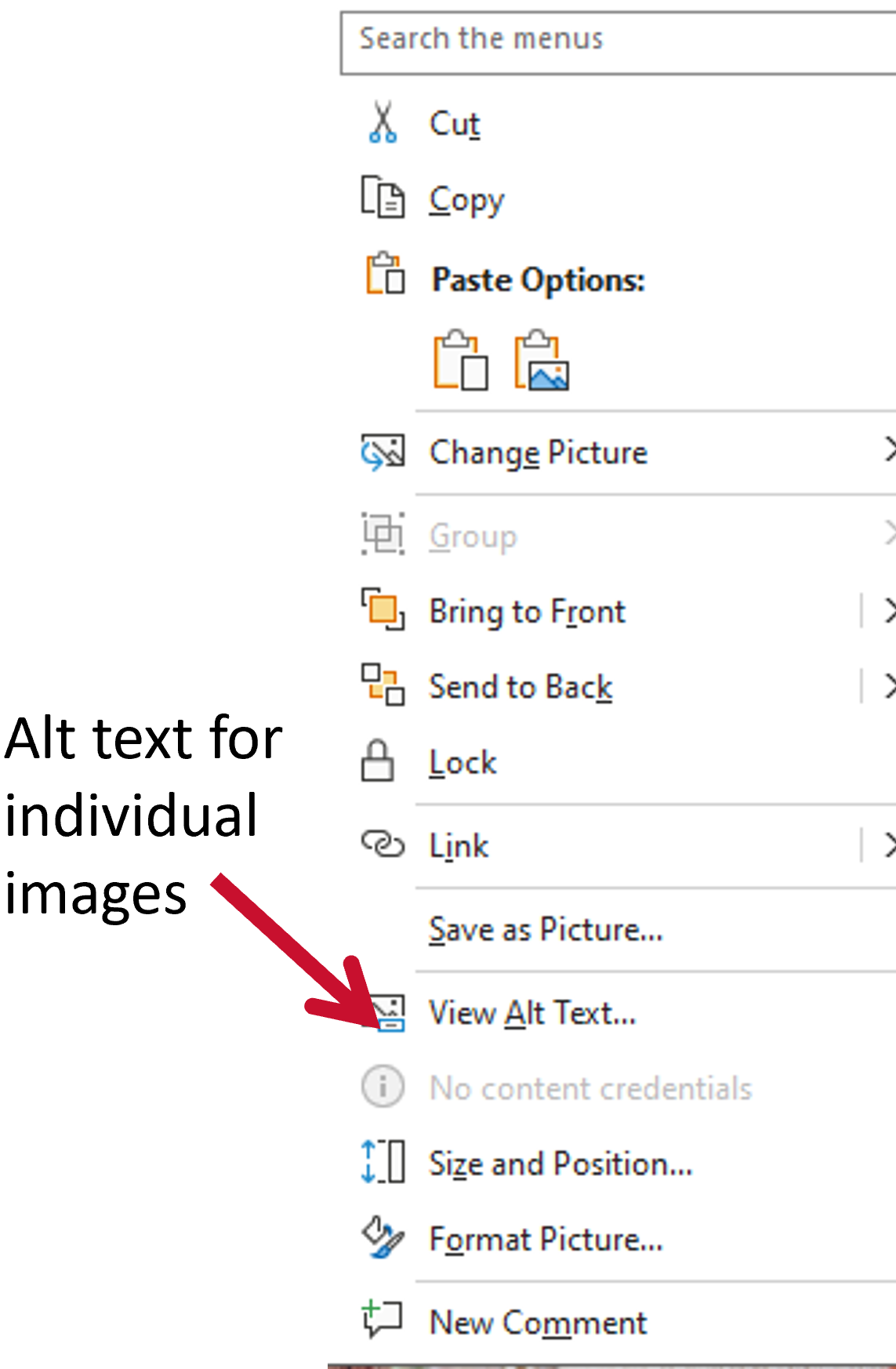
To add or view alt text for an image in Microsoft Word, right-click on the image to open the context menu, then select 'View Alt Text' from the list. Alt text is essential for making content accessible to users who rely on screen readers, as it provides a description of images and other non-text elements."
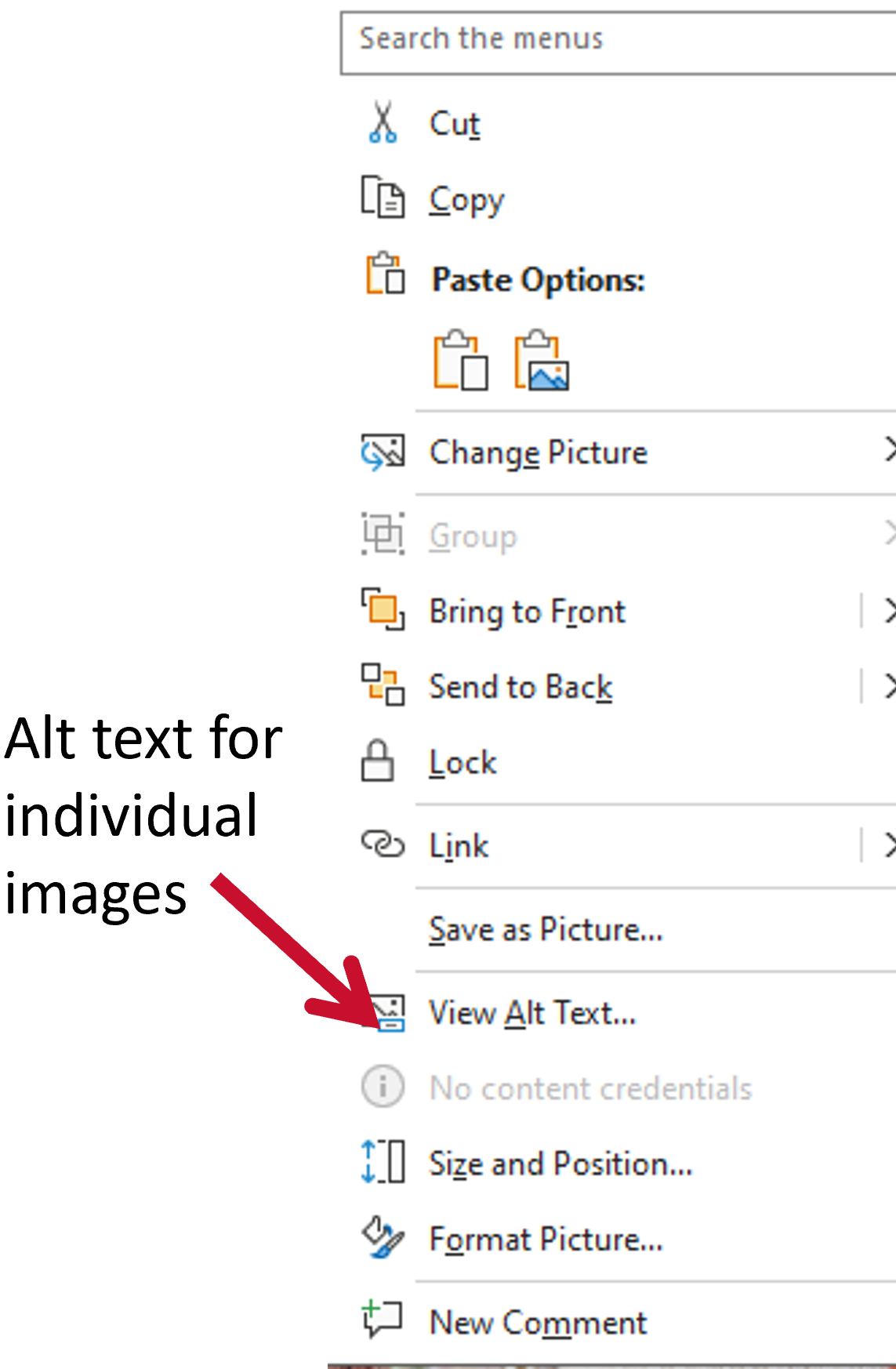
Making Images Accessible in Word
PowerPoint
In PowerPoint, you can add alt text or mark an image as decorative by right-clicking the image—just like in Word. However, PowerPoint also offers an additional accessibility toolset for efficiently addressing accessibility across multiple slides.
How to Use the Accessibility Toolset in PowerPoint:
Open PowerPoint and select the 'Review' tab on the toolbar.
Click 'Check Accessibility' from the options under the Review tab.
The Accessibility Panel will open on the right-hand side, showing a list of accessibility issues along with guidance for fixing them, such as missing alt text.
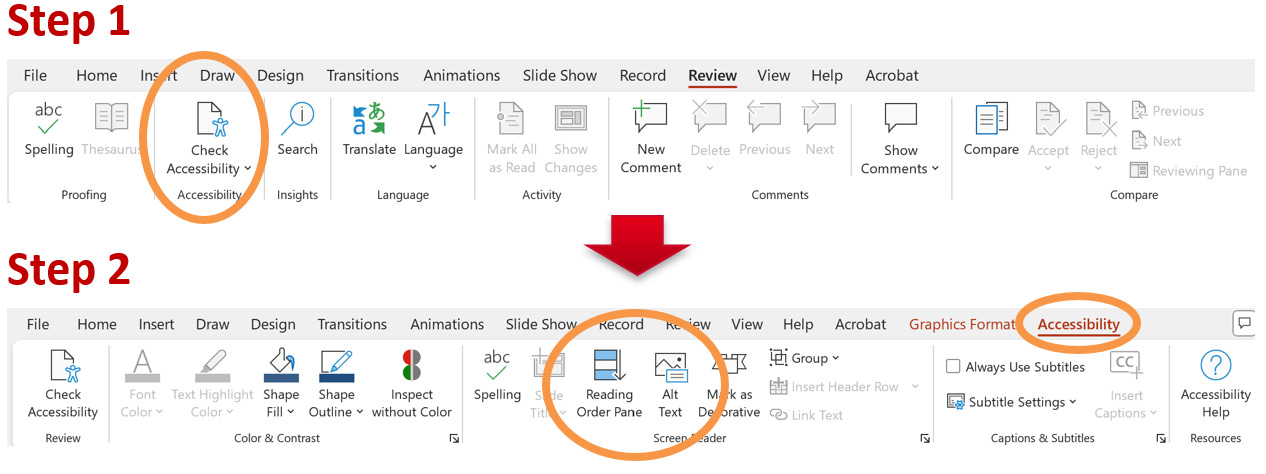
This tool helps you identify and resolve accessibility concerns throughout your presentation quickly. The visual elements are clearly labeled with arrows, guiding you through each step for an accessible experience.
Creating accessible images in PowerPoint
Did you know?
Generally, SmartArt graphics are not fully accessible for screen readers but are incredibly helpful for making concepts understandable for learners, including those with neurodiversity. If you use SmartArt in presentations, consider creating an alternative version. My approach? I include SmartArt in the presentation but provide a handout with the same information in a standard bulleted list format to ensure everyone has access. I save the presentation with the bulleted lists before I add the SmartArt to keep my workflow efficient. For more on SmartArt, check out Making SmartArt Accessible.
When to Use Alt Text vs. Decorative Tags
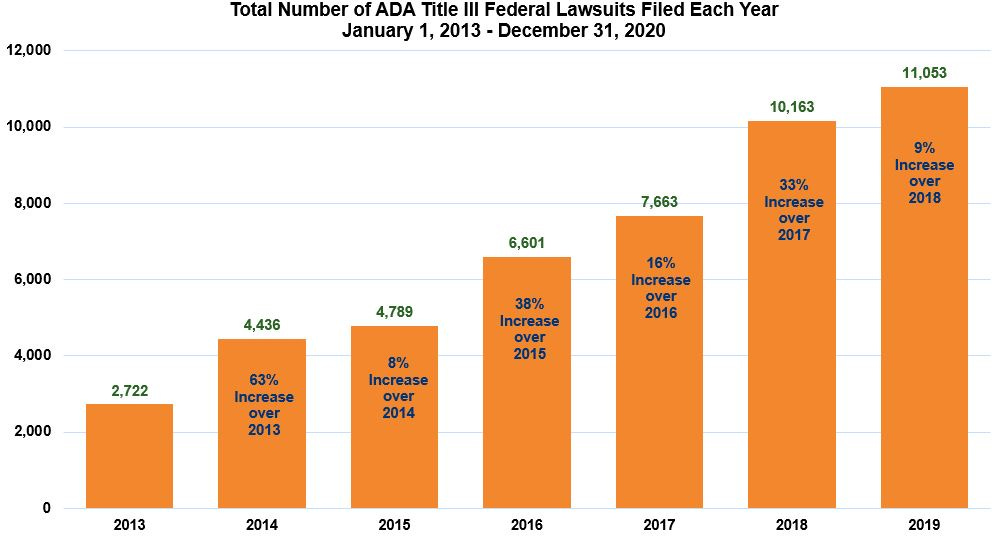
Use Alt Text: When the image adds valuable information, such as a chart that shows trends or an image that visually explains your topic. Effective alt text helps users get the gist quickly. Ensuring that the text gets across the point of the visual is the key to effective alt-text. See the example below.
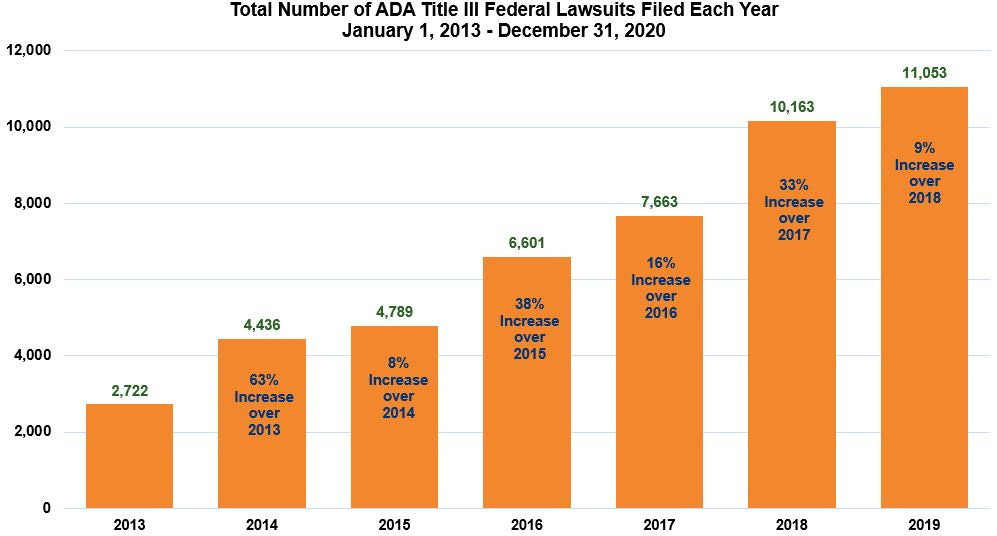
Total number of ADA Title III federal lawsuits graph published by By Seyfarth Shaw LLP on February 20, 2020. Too Short: "Bar chart showing the total number of ADA Title III federal lawsuits filed each year from 2013 to 2019."
Just Right: "Bar chart showing the total number of ADA Title III federal lawsuits filed from 2013 to 2019, with a significant increase of 63% from 2013 to 2014, and continuing steady growth each year, peaking at 11,053 cases in 2019."
Too Long: "Bar chart displaying the total number of ADA Title III federal lawsuits filed each year from January 1, 2013, to December 31, 2019. The chart starts at 2,722 cases in 2013, increasing to 4,436 cases in 2014, which is a 63% increase from the previous year. The number continues to grow steadily each year, reaching 4,789 in 2015 (8% increase over 2014), 6,601 in 2016 (38% increase over 2015), 7,663 in 2017 (16% increase over 2016), 10,163 in 2018 (33% increase over 2017), and finally reaching 11,053 in 2019 (9% increase over 2018)."
What about complex diagrams like flow charts or scientific illustrations? Complicated charts can be assessed to see if the text already presents the information. If the information is not already described in the text, you can provide an alternate “long description” in a document or as a link. In that case, you would say something like, “Bar chart showing an annual increase in ADA Title III federal lawsuits. See the long description below this” document for a full analysis of the trends and each data point seen in the image.
Use Decorative Tags: If an image is purely decorative or used as a visual marker or attention-getter (like a background graphic or a flourish that doesn’t provide new information), mark it as decorative. This tells screen readers to skip it so users aren’t stuck hearing redundant details.
No Alt Text Needed If Fully Explained: When the image's content is already described in the main text, skip the alt text. Screen reader users will thank you for not doubling up.
And because these decisions aren’t always easy, there's help. Use the Alt Decision Tree from W3C—a great tool to help triage whether an image needs alt text or can go straight into the "decorative" category. Having trouble deciding what to write? Here is a place where AI can be incredibly helpful. See the post below for access to my free custom GPT for accessibility.

Quick Challenge:
Choose an Image-Heavy Document or Slide Deck: Pick a file with several images, and decide which ones are vital for understanding the content. Add descriptive alt text to those, and mark any others as decorative to keep things efficient for screen reader users. Remember, every image tells a story—but not every story needs to be read out loud twice!
Keep Going!
Alt text is one step that makes a big impact on our accessibility journey. It’s an easy way to bring everyone into the experience of your content, even if they’re using a screen reader. And the more you think about your images and how they serve your audience, the more you’ll see value in adding details, letting some images remain silent, or letting others go entirely, making you an even better designer or curator of learning experiences.
Additional Resources
University of Maryland School of Social Work Knowledgebase Links (version for my faculty audience):
Resources by others that I recommend:
How to write a good alt tag for an image: Alternative Text
DIAGRAM Center: Image Description Guidelines
Use the Alt Decision Tree from W3C to triage images.
Thank you for sticking with me through these accessibility quick wins. We’re making meaningful strides together, and I’m excited to bring you our next tip in the SLIDE method!
Let’s keep making our content more welcoming, one image at a time!
AI writing disclosure (because transparency is important): This document was drafted by a human. It was then edited and formatted with the assistance of AI.
Other posts in this series:

